
What is mAIcomerce?
mAIcomerce is your all-in-one solution designed for the shipping and logistics industry.
We combine purpose-built hardware with smart web-based software to streamline your operations, reduce costs, and eliminate the headaches of traditional shipping setups.
What Can You Do Here?
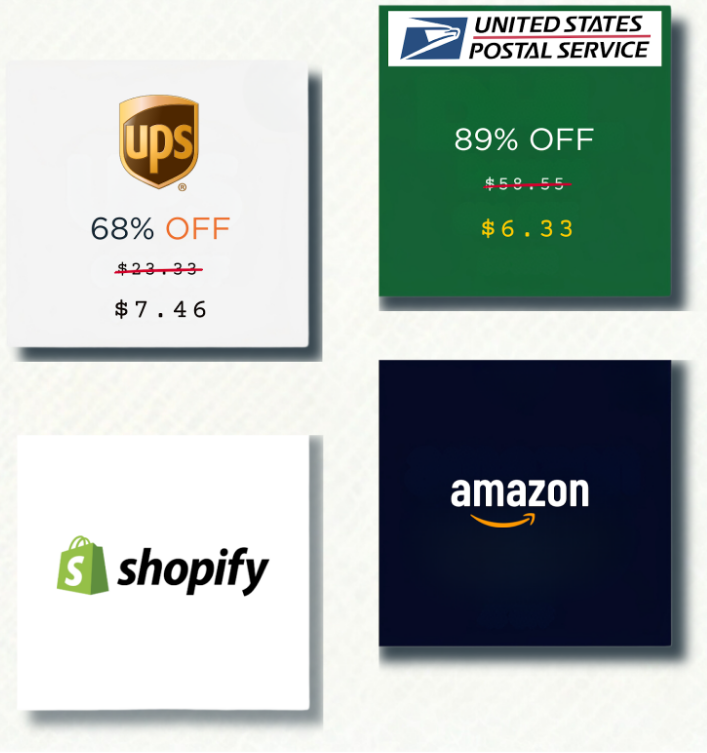
- Cut costs by up to 70% using our hardware (no full PC setup needed).
- Use our built-in AutoOMS to process orders — no more downloading random OMS software.
- Through our web application (Kommerce), you can:
- Import a Policy Sheet that includes all your preferences (Carriers, Stores, Marketplaces, ERP, Payment systems).
- Link your hardware to Kommerce and let AutoOMS execute policies automatically.
Ship orders directly from your device — smart, simple, streamlined.
Initial Setup
Sign Up for a Free Trial
Platform Ecosystem — How It All Works Together
Sign Up for a Free Trial
- Go to:
👉 http://kasernet.com/products/service/autooms-free-trial/ - Enter your credentials and sign up.
- You’ll receive two emails:
- One in your primary email
- One in your backup email
- Once your email is verified, you’ll receive a Free Trial email containing:
- A link to access your Kommerce Webpage
- A link to download your Credentials App
⏳ Note: Your free trial lasts 14 days. No extensions or recharges are available for free trial plans.
Platform Ecosystem — How It All Works Together
Let’s break down the magic behind your mAIcomerce setup:
🔌 Connect Your Hardware
- Once your device arrives, plug in your keyboard, mouse, and monitor.
- Power it on.
💻 Set Up Kommerce Web App
- On your personal computer or laptop, visit
👉 https://automation.kasernet.com/ - Create your Kommerce account.
- Your hardware will display a code — copy and paste it into Kommerce to link your device.
📲 Configure with the Credentials App
- Open the Credentials App (downloaded via your trial email).
- In the app:
- Customize your Policy Sheet (Shipping Carriers, Stores, Marketplaces, ERP, Payments).
- Export your policy when done.
📤 Import Your Policy to Kommerce
- Go back to Kommerce and import your Policy Sheet.
You can always edit it later directly in Kommerce.
✅ Ready to Ship!
Once setup is done, your orders will automatically begin flowing in from your connected channels.
AutoOMS will start executing based on the policy, and you’re ready to ship.
Quick Intro to the mAIcomerce Ecosystem
How your hardware, software, and web apps work together seamlessly.
🖥️ 1. Setting Up Your Hardware
🌐 2. Accessing the Web Application (Kommerce)
📥 3. Using the Credentials App
📤 4. Importing Policy Sheet to Kommerce
🛒 5. Ready for Orders!
🖥️ 1. Setting Up Your Hardware
Once your hardware arrives:
- Plug in your keyboard, mouse, and monitor.
- Power on the device.
🌐 2. Accessing the Web Application (Kommerce)
- On your computer/laptop, open the Kommerce web app:
👉 https://automation.kasernet.com/ - Create your account.
- You’ll see a code on your device — copy and paste it into Kommerce to add your device.
📥 3. Using the Credentials App
- Open the Credentials App (you received it via email after starting your free trial).
- If you haven’t signed up for a trial yet:
👉 Sign up here - In the app:
- Customize your shipping, payment, order mapping, and SKU policies.
- Export the completed policy sheet.
📤 4. Importing Policy Sheet to Kommerce
- Go back to the Kommerce web app.
- Upload the exported policy sheet from your Credentials App.
- Once uploaded, you can edit or update the policy anytime.
🛒 5. Ready for Orders!
Once your policies are in place:
- Kommerce and mAIcomerce will start processing incoming orders from your connected stores or marketplaces automatically.
Before using the credentials app, you should know what it is.
What is the Credentials App
The Credentials App by Kasernet is designed to help you create your policy sheet and integrate it with various marketplaces and e-commerce platforms to ease your workflows.
What is a policy sheet?— Great question. Think of a policy sheet as a master configuration document with essential credentials like your carrier services, shipping locations, and order mappings needed to integrate a business’s operations across multiple platforms.
Navigation through the credentials app
Carrier Services
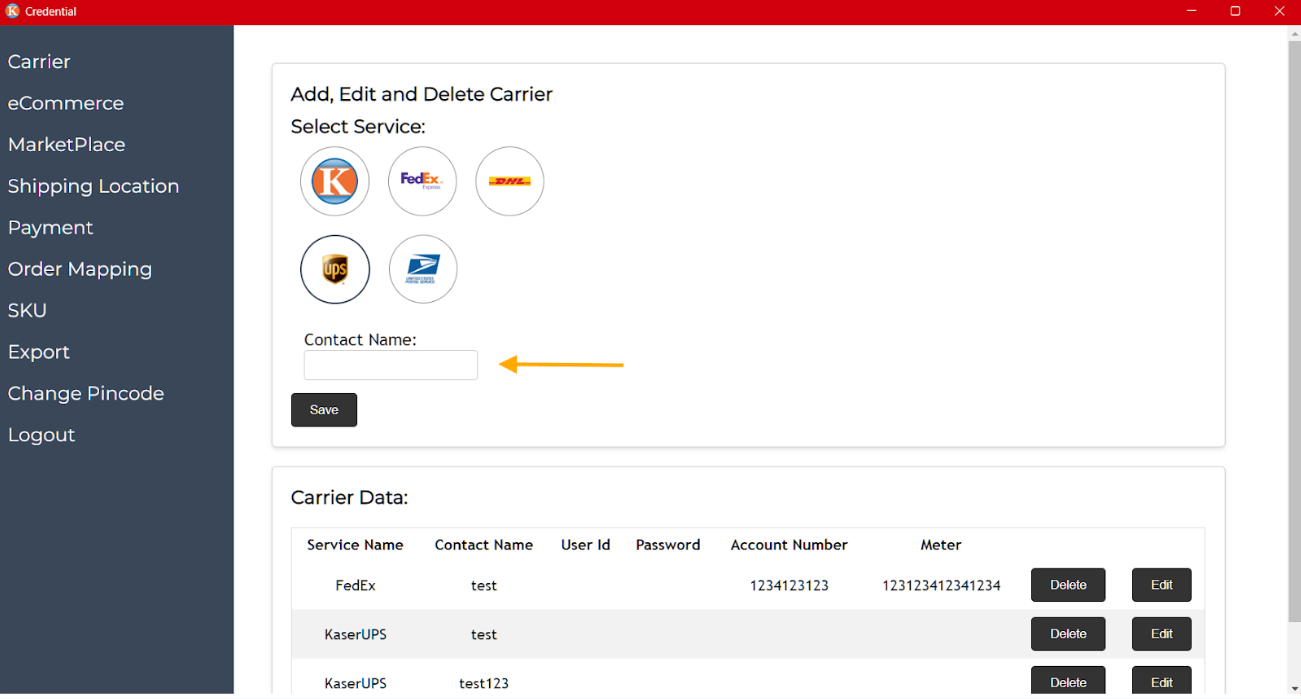
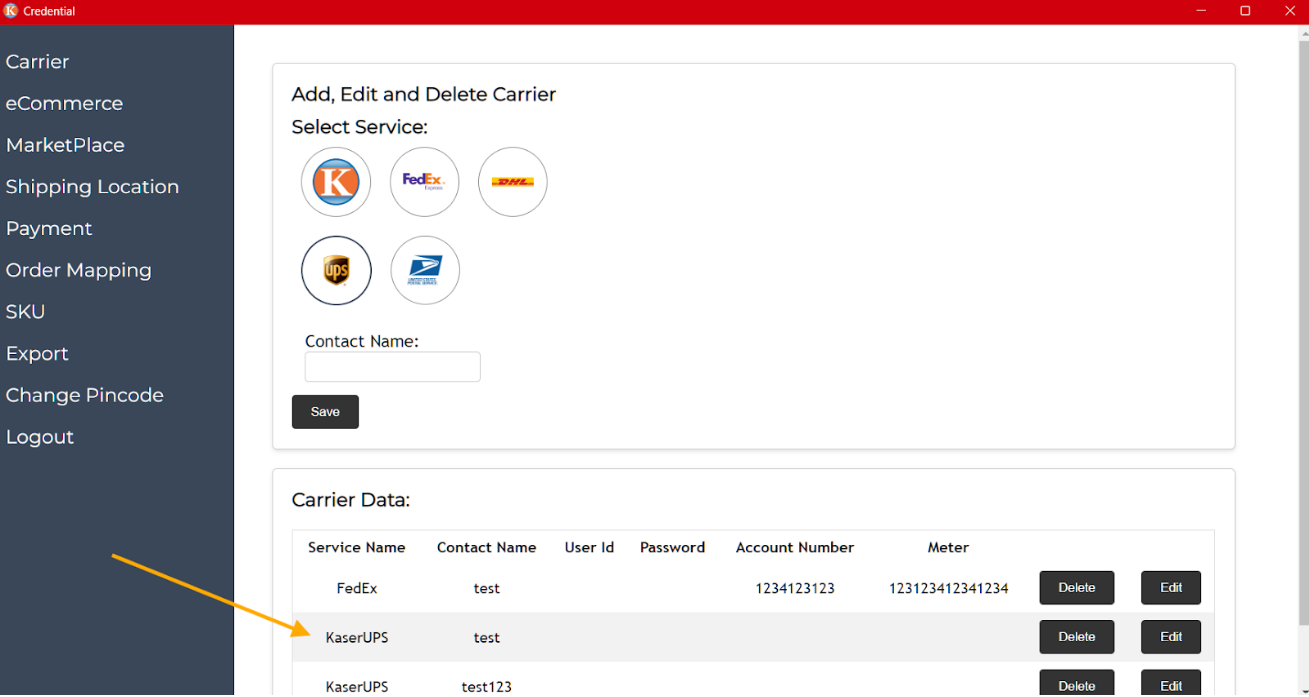
In the carrier services tab, you can add/edit/delete your carrier services.
What carrier services can you use?
- Kfleet(By Kasernet)
- FedEx
- DHL
- UPS
- United States Postal Service (USPS)
How to add your preferred carrier service?
- For example, your preferred method is UPS. Select and enter your contact name
- Once done, you’ll see it right here
Previous
Next
E-commerce Platforms
In this section, you can select the E-commerce platform of your choice like:
- BigCommerce
- WooCommerce
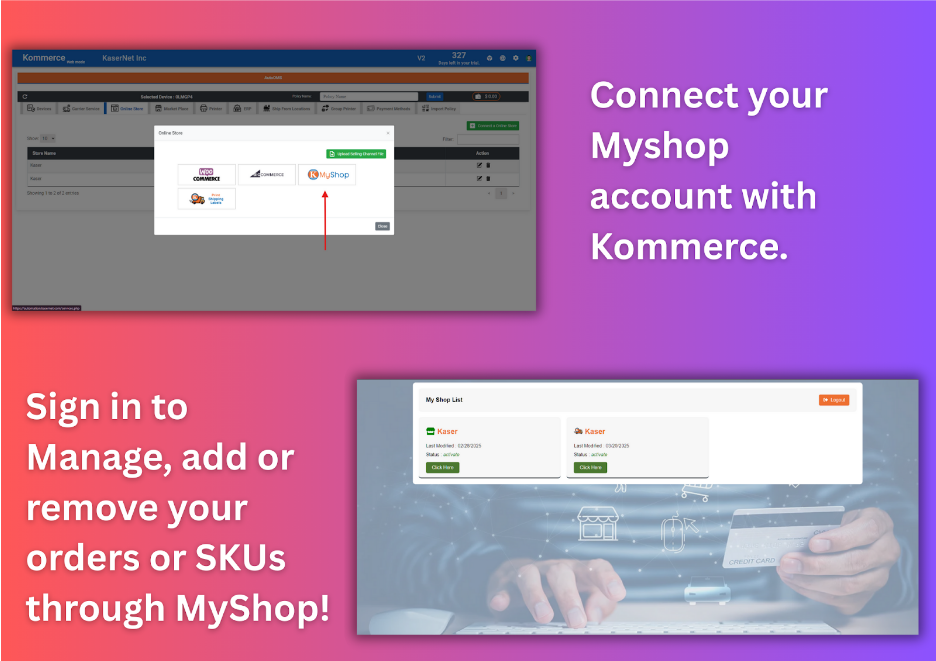
- MyShop(By Kasernet)
Don’t want to integrate with an E-commerce platform? Don’t worry, head to the next section to select your preferred marketplace!
How to fill out various fields? Let’s say you’re using BigCommerce. Follow these steps:
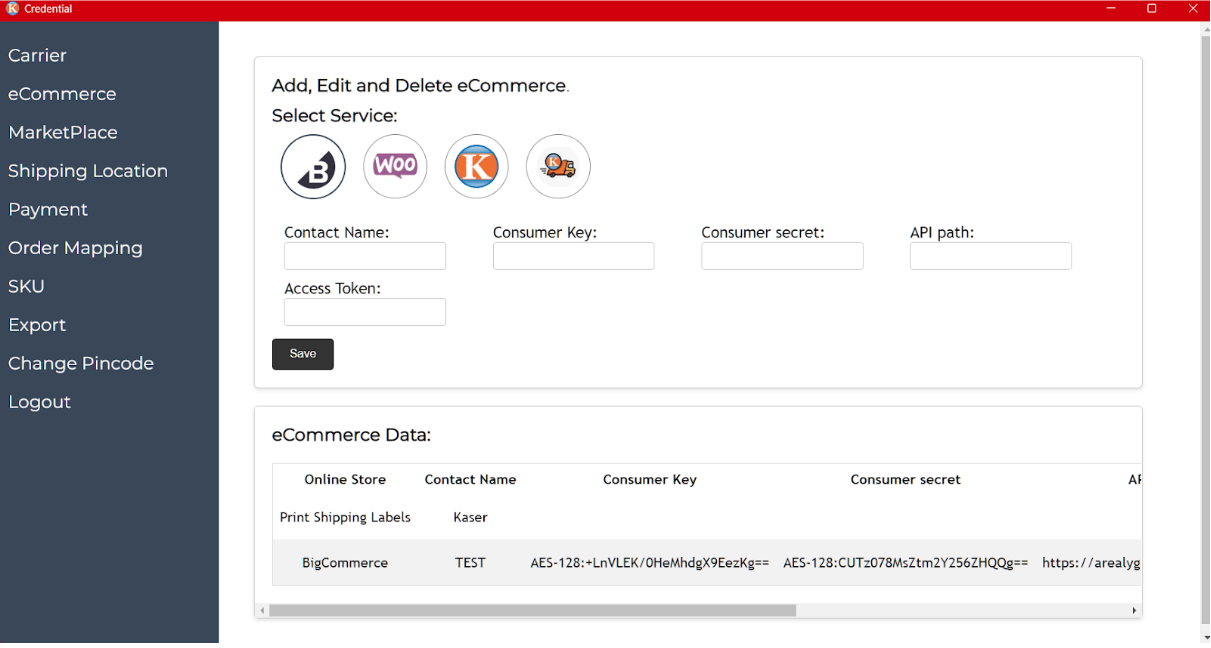
- Go to Advanced Settings → API Accounts in your BigCommerce dashboard.
- Click “Create API Account” or select an existing account.
- The Client ID serves as the Consumer Key.
- After creating an API account, you’ll be shown the Client Secret (this acts as the Consumer Secret).
- Important: You can only view this once during creation, so download the credentials file for future reference.
The API Path is provided in the same credentials window.
It usually looks like this:
https://api.bigcommerce.com/stores/{store_hash}/v3/
The {store_hash} is unique to your store and is part of the credentials.
- Generated during API account creation.
- This Access Token authenticates your API requests.
- Like the Client Secret, it’s shown only once—download the credentials file to keep it safe.
- Log in to your BigCommerce dashboard.
- Go to Advanced Settings → API Accounts.
- Click “Create API Account”.
- Set the name, choose OAuth Scopes, and click Save.
- A popup will display your Client ID (Consumer Key), Client Secret (Consumer Secret), API Path, and Access Token.
- Download the credentials for safekeeping.
For detailed instructions, refer to BigCommerce’s API Documentation.
Marketplace
In this section, you can integrate with a marketplace of your choice. You can choose from: Amazon, BestBuy, eBay, Sears, Walmart, Wix, And more!
Let’s say you’re using one of the most popular Marketplaces, Amazon. To locate the credentials, follow these steps:
You’ll need to obtain specific credentials and information to integrate with Amazon’s Selling Partner API (SP-API). Here’s a breakdown of each item shown in the box and guidance on where to find them:
Client ID
After registering your application in the Developer Console, navigate to your application's Login with Amazon (LWA) security profile to find the Client ID.
Client Secret
Within the same LWA security profile where you found your Client ID, you'll also find the Client Secret. These credentials are essential for obtaining an access token.
Consumer Key
Amazon's SP-API does not use a Consumer Key. Instead, it utilizes the Client ID and Client Secret for authentication.
Consumer Secret
Similarly, there is no Consumer Secret in SP-API. The Client Secret serves this purpose.
API Path
The API Path refers to the endpoint URL for the specific SP-API resource you're accessing. For example, to retrieve orders, you might use:
https://sellingpartnerapi-na.amazon.com/orders/v0/orders
Replace na with the appropriate region code as needed.
Access Token
To obtain an Access Token, use your Client ID and Client Secret to authenticate via the Login with Amazon (LWA) service. This token is required for making authorized API requests.
Region
The Region corresponds to the Amazon marketplace you're targeting (e.g., North America, Europe). Ensure you use the correct regional endpoints and settings for your specific integration needs.
For detailed guidance on obtaining these credentials and setting up your integration, refer to Amazon’s official documentation on Connecting to the Selling Partner API.
By following these steps, you’ll be equipped with the necessary credentials and information to integrate with Amazon’s SP-API effectively.
Shipping Location
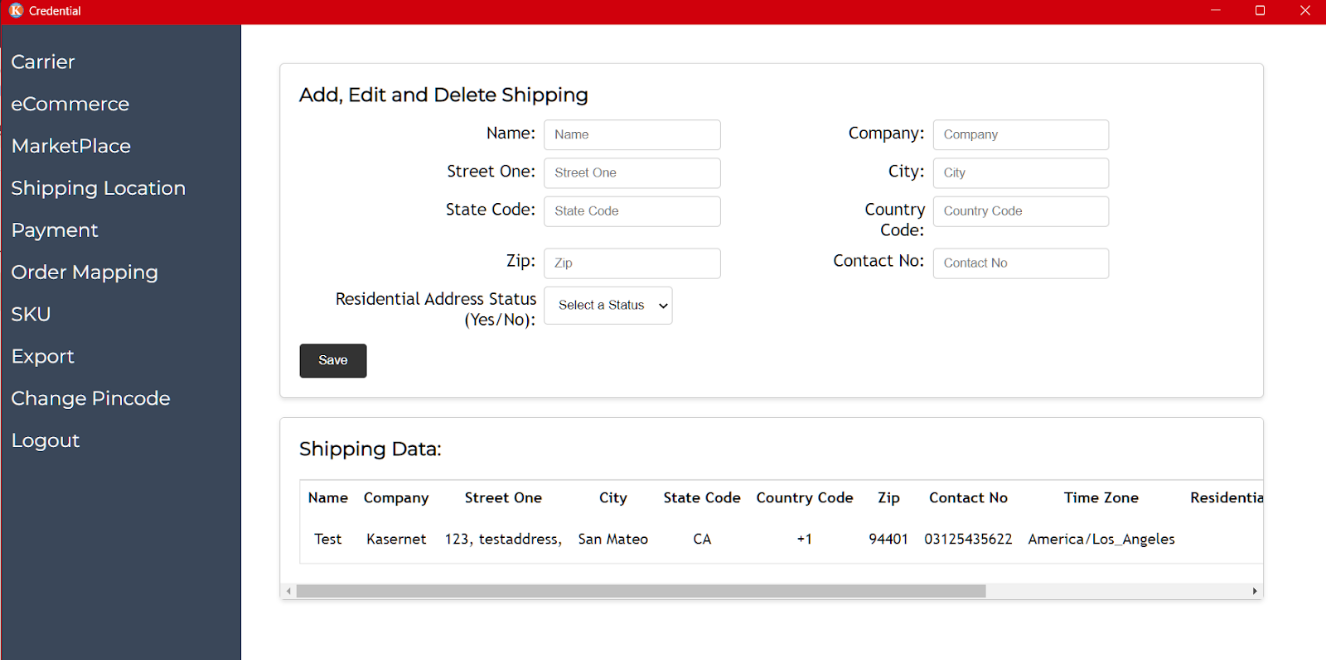
Here you can fill out your shipping information. “Add your Shipping from location”, meaning this location will be used to pick up from and dispatch the orders.
Here you can fill out multiple fields
Having more details means more transparency between your clients!
Order Mapping
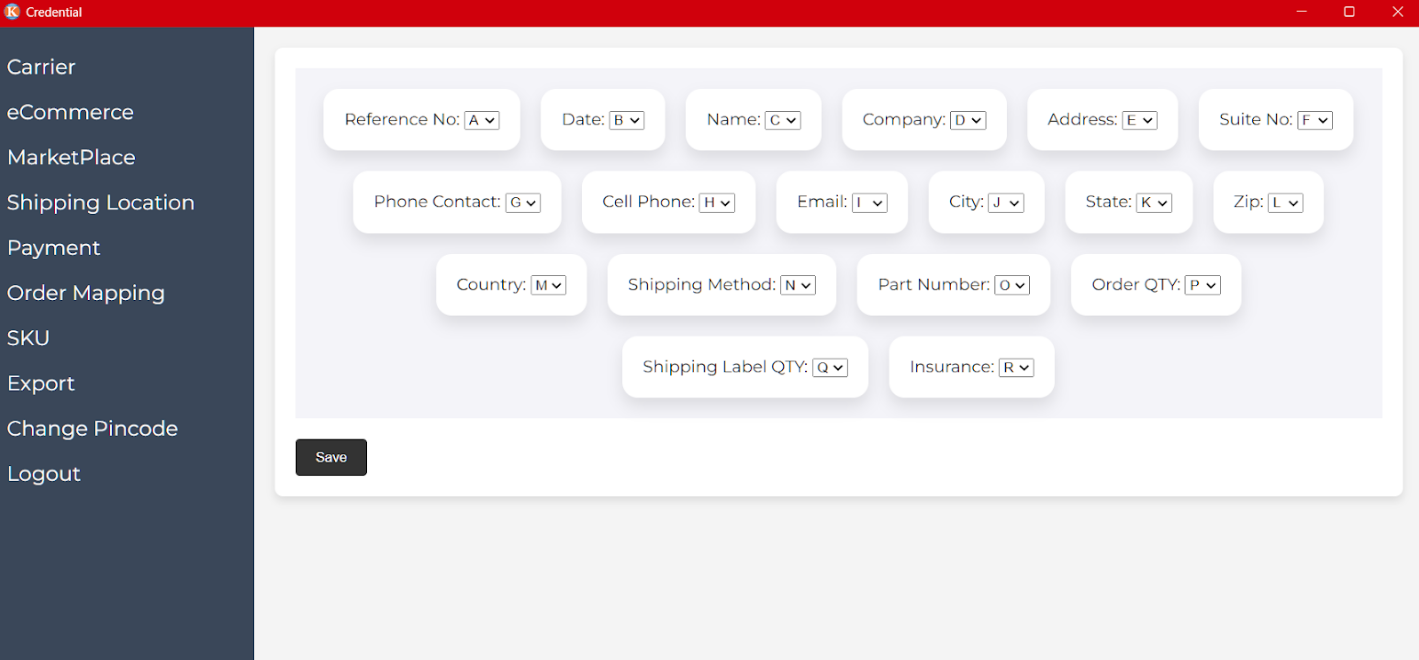
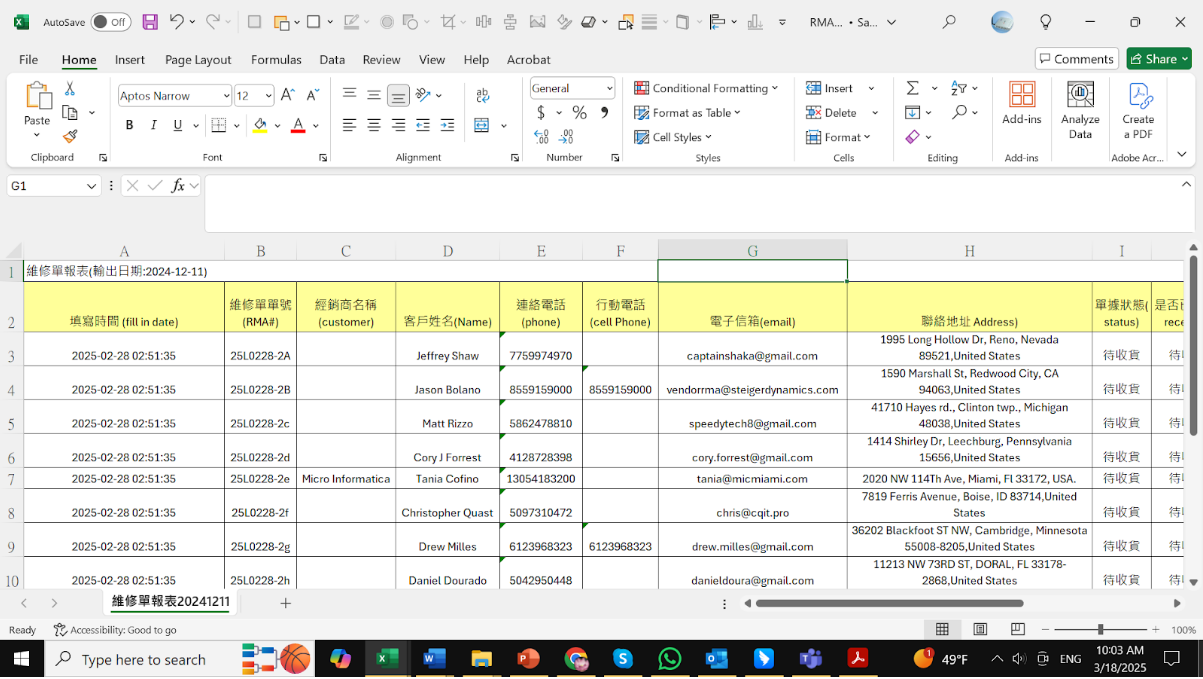
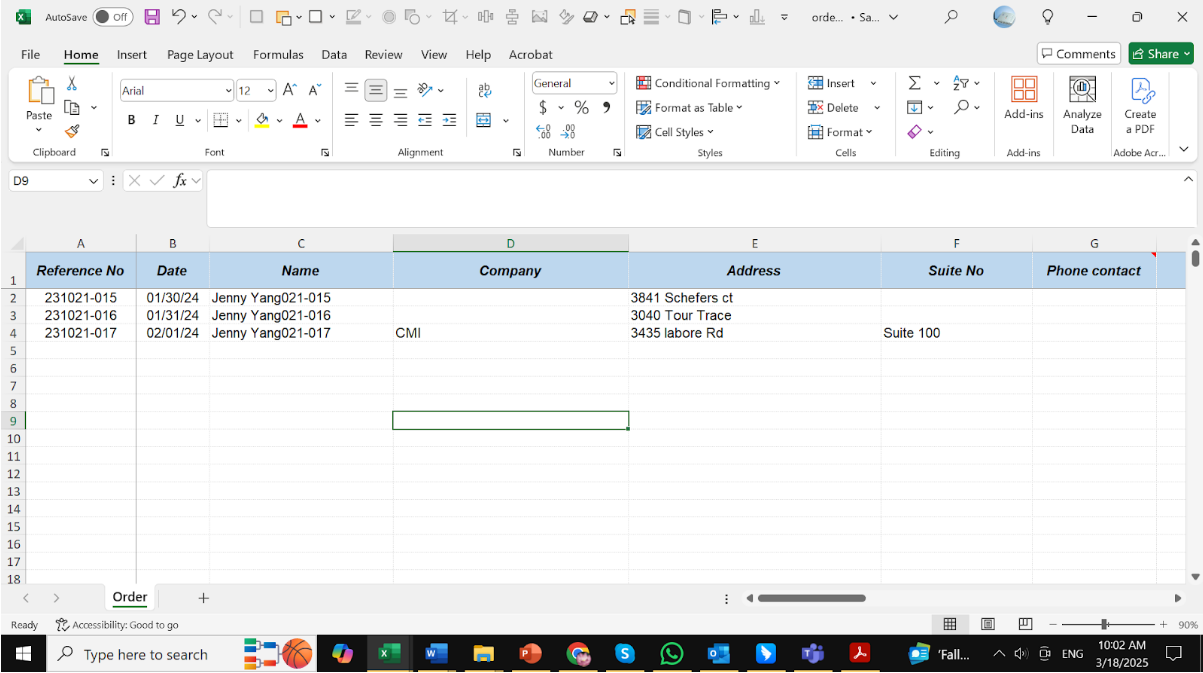
To enable Kommerce to interpret the order format, the Credentials App allows customers to map their orders, ensuring seamless recognition by Kommerce.
- This is what a general order sheet looks like. Usually, this is good for manual data entry. But for Kommerce to be able to read and execute your policy, you need to edit the data in our format.
Previous
Next
Stock Keeping Unit (SKU)
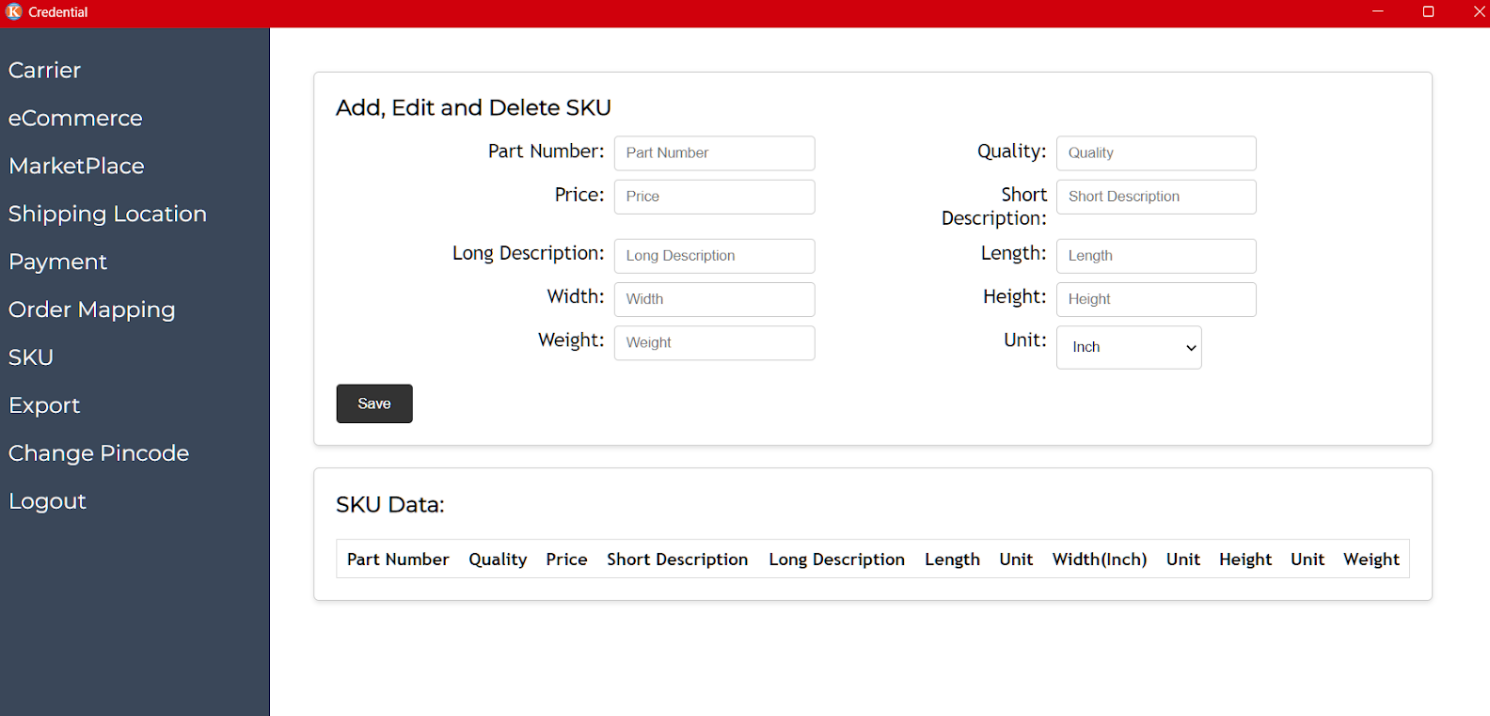
Stock Keeping Unit or (SKU) is a unique identifier assigned to a specific product or item in inventory. Each SKU is a distinct code that helps businesses track and manage their stock levels, sales, and replenishment needs. This information is also required for the carrier to calculate shipping charges
Examples
A T-shirt might have multiple SKUs based on size and color:
SKU: TSHIRT-RED-L (for a large red T-shirt)
SKU: TSHIRT-BLUE-M (for a medium blue T-shirt)
In our app, however, we’ve given you more options to manage your products:
Part Number, Quality, Price, Short Description, Height , Weight , Unit
This assures all your data is managed carefully and with precision.
Once you’ve edited/updated your policy within the credentials app, you can choose to export it and later upload it to Kommerce or MyShop. Currently, we only provide the option to export in XLSX format, which is the default and standard format in most cases.
Soon, we may add different formats for different use cases.
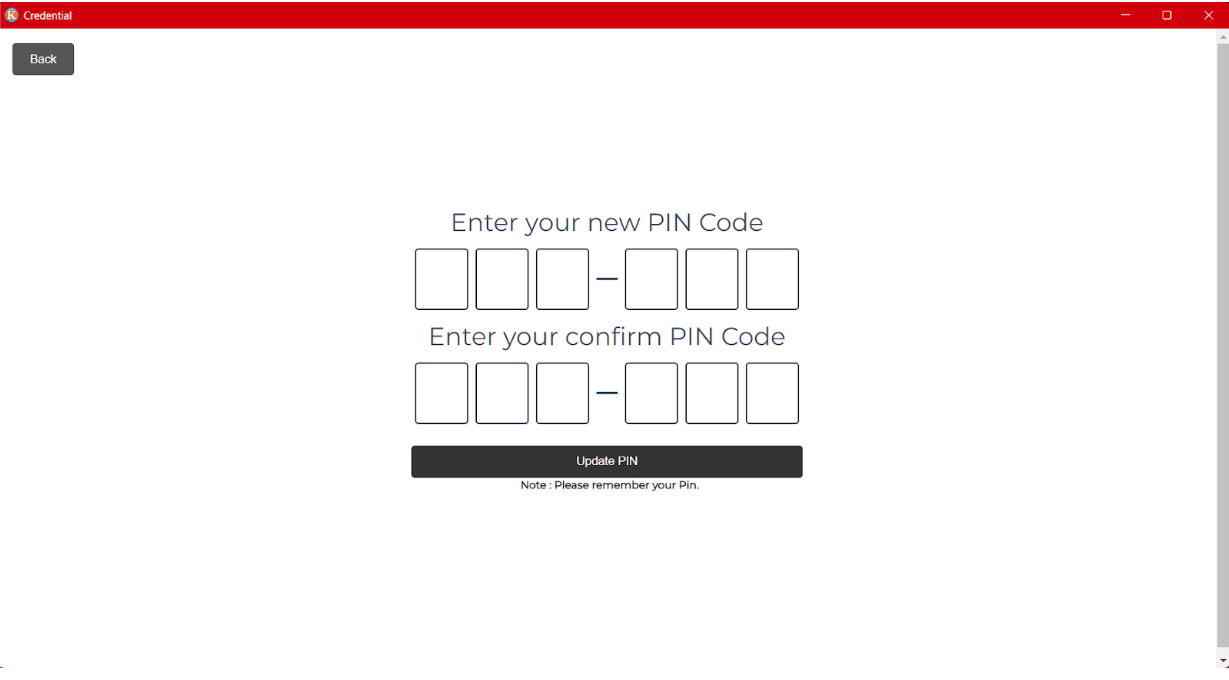
Absolutely. You can change your PIN. However, if you forget your PIN, you will need to contact Kasernet Support.
I want to proofread my exported file before importing it to the Kommerce/E-commerce store.
If you like to view your exported Automation file, you can do so. Since this is an XLSX file, you can use Microsoft Excel.
Don’t have that?
Alternatively, you can go to this Online XLSX viewer.