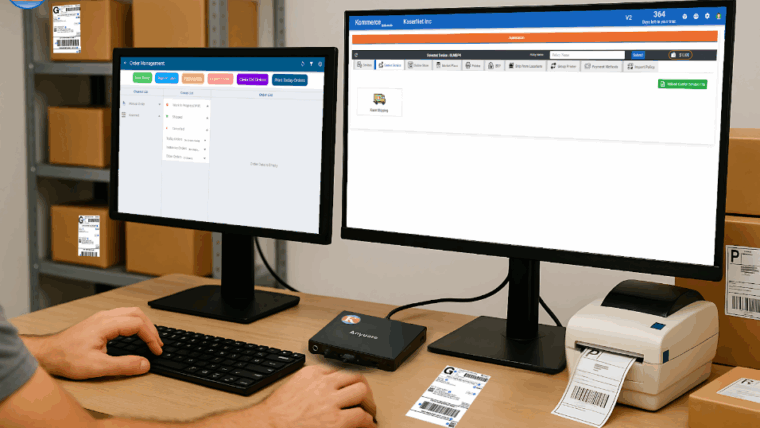

The Credentials App by Kasernet is a powerful tool that simplifies the setup process for all your ecommerce automation policies. Whether you’re configuring shipping carriers, connecting marketplaces, or preparing SKU data, this app ensures your operations run smoothly once connected to Kommerce and MyShop.
In this step-by-step guide, we’ll walk you through the key sections of the Credentials App and how to use it to build a complete automation policy.
🧩 What Is the Credentials App?
The Credentials App is a lightweight application (downloaded via the Kasernet welcome email) that lets you set up:
Carrier service credentials
Ecommerce and marketplace store connections
Ship-from locations
Payment gateways
Order format mapping
SKU-level data
Export-ready automation policy
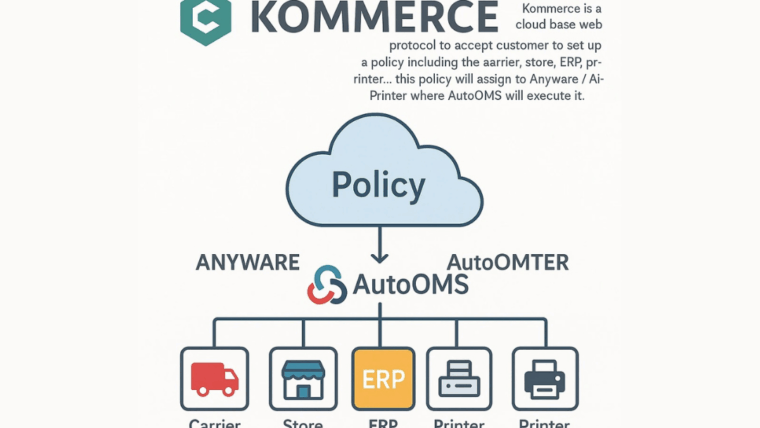
Once exported, this file can be imported into Kommerce to automate your order processing, labeling, payments, and fulfillment.
📦 Step 1: Add Carrier Services
Go to the Carrier section and choose from providers like UPS, USPS, FedEx, DHL, and more. For each carrier, enter:
Contact name
Account number
Meter number (found in your shipper’s dashboard)
These credentials help Kommerce and AutoOMS generate labels and shipping quotes.
🛒 Step 2: Connect Ecommerce Stores & Marketplaces
In the Ecommerce tab, connect platforms like:
WooCommerce
BigCommerce
MyShop
Glee
You’ll need:
Contact name (your store’s nickname)
Consumer key & secret
API path (from your admin dashboard)
In the Marketplace section, connect Amazon, Etsy, eBay, or Sears by adding:
Client ID & Secret
Consumer Key
Account Token
API path
Region
Once connected, your orders can flow directly into Kommerce.
🚚 Step 3: Add Shipping Locations
Specify your origin address for carrier pickups and returns:
Name, company, street, city, state, ZIP, and country
Mark it as a residential address if applicable
Set it as default for use across your policies
💳 Step 4: Set Up Payment Methods
Kasernet supports three payment types:
ACH
PayPal (3% surcharge applies)
Personal credit card
Enter the necessary credentials such as client ID, username, and password.
🧾 Step 5: Order Mapping for MyShop
If you use MyShop, make sure your uploaded orders follow Kasernet’s format. Map fields like:
Column A = Reference number
Column B = Customer name
Column C = Date
…and so on.
This ensures MyShop can interpret orders and apply automation rules correctly.
📦 Step 6: SKU Configuration
Each SKU should include:
Part number
Quantity
Price
Description
Dimensions (length, width, height)
Weight (oz, lb, or kg)
SKU-level data is essential for accurate shipping cost calculations and inventory management.
📤 Step 7: Export Your Policy File
Once everything is configured, click “Export” to generate your automation policy. This file (usually named automation data) is what you’ll import into Kommerce.
From there, your devices like Anyware or AirPrinter will follow your rules for:
Label printing
Order processing
Payment execution
Carrier service selection
—
Final Thoughts
The Kasernet Credentials App gives you full control over your ecommerce operations — before a single order is even received.
Whether you’re shipping globally, running bulk B2B orders, or managing multiple warehouses, this simple setup tool ensures your policy is applied consistently across Kommerce and MyShop.
🚀 Ready to Get Started?
Skip the clunky spreadsheets and overkill software.
With Kommerce, fulfillment is finally simple, smart, and scalable.
👉 Learn more at Kasernet.com
📧 Or reach out for a free demo: sales@kasernet.com
No fluff. No overwhelm. Just fulfillment that works.